Improving the MikroTik RB5009 WireGuard performance
Table of Contents
A quick guide on how to get better WireGuard performance out of the already awesome MikroTik RB5009 router, by playing with the queues and the CPU frequency settings.
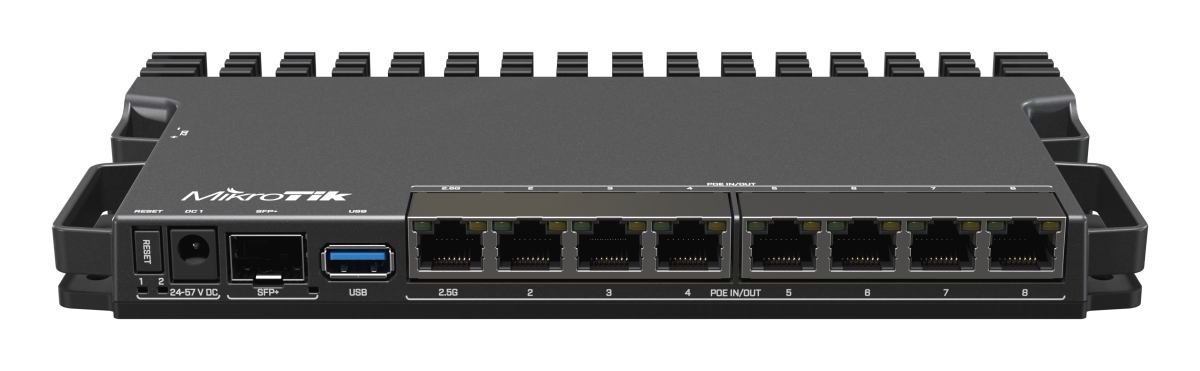
The router used throughout this article is the RB5009UPr+S+IN and it is being as a WireGuard node.
                                           +------------+
                     +------------+        |            |        +----------------+
+---------------+    |            |   WG   |            |   WG   |                |    +---------------+
| iperf3 client +--->|   RB5009   +------->|  Internet  +------->|  Linux router  +--->| iperf3 server |
+---------------+    |            |        |            |        |                |    +---------------+
                     +------------+        |            |        +----------------+
                                           +------------+
Low throughput? On a RB5009?
There's no doubt that the RB5009 is a very capable router which would be a great fit for most use-cases, and I've happily been using one in my homelab for quite a few years now. As it has evolved over time, its network setup has as well, and I somewhat recently implemented a site-to-site VPN architecture based on WireGuard, using one of these routers as one of the endpoints, providing a seamless connectivity for downstream entities. This went without hiccups for the most part, but when performing a speed-test over the tunneled link, the throughput was much lower than when tested without going through it. This was very intriguing, especially coming from a good 4-core ARM64 CPU.
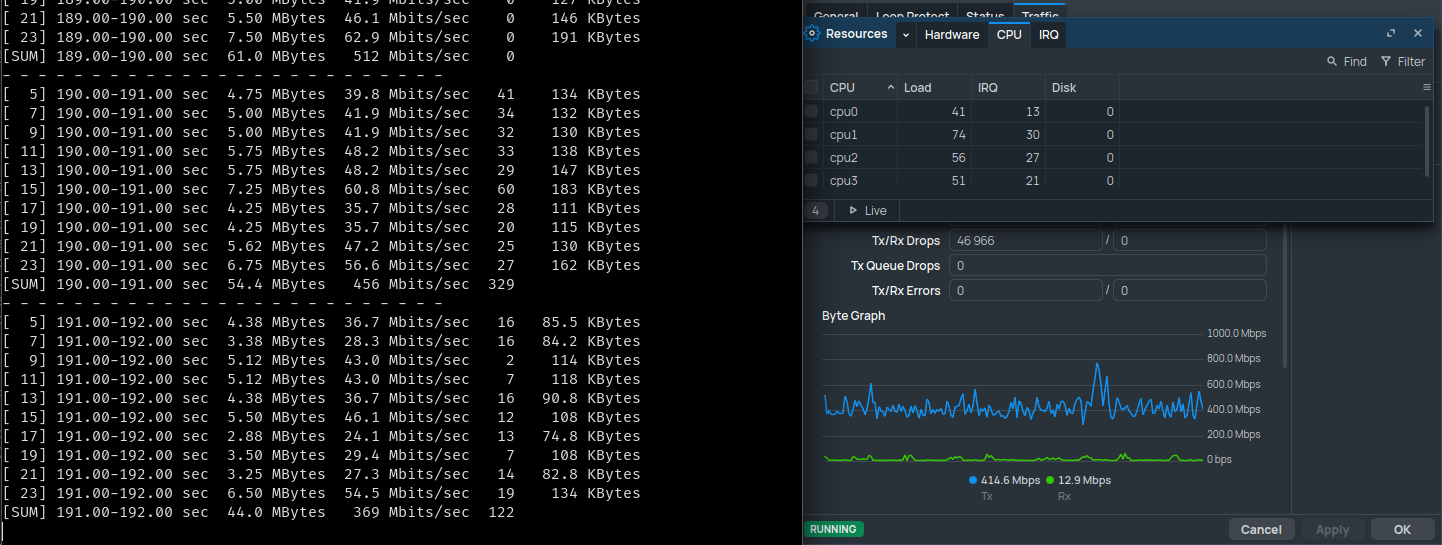
The MikroTik WireGuard documentation has a great site-to-site configuration example, if you ever need one.
As can be seen in the previous screenshot, the WireGuard performance was a bit
all over the place, hovering inconsistently around the 400Mbps mark with
a lot of retries and a lot of transmission drops. Meanwhile, neither the CPU or
the 1Gbps network link between the two endpoints were at their limit, nor was
the iperf3 nodes. Granted, an iperf3 test isn't the best tool for getting a
real-world bandwidth benchmark, but it should still represent a best-case scenario
and not a worst-case one. More tests, done using a direct WireGuard link between
the iperf3 server and its client highlighted that the bottleneck was more than likely
the RB5009.
After testing a few classic things on the router to improve the throughput of this tunnel, such as tinkering with the MTU and checking if Fast Track was correctly configured and if disabling it changed anything, to no avail, I decided to broaden my research.
In search of a better queue
After looking around the different statistics that RouterOS exposes, I started investigating the high TX drops that could be seen in the previous screenshot. As it has been taken on the child VLAN interface, I checked for drops on the parent interface, and there were quite a lot of transmission queue drops.
As stated on the MikroTik documentation about Queues,
"a queue is a collection of data packets collectively waiting to be transmitted
by a network device using a pre-defined structure methodology". Here, in the case
of the RB5009, the default queue for the problematic interface is only-hardware-queue.
As it seems that packets are being pushed faster than what can transmit the link
and can hold the queue, it's time to search for a potential replacement!
One queue that I've seen being recommended for WAN interfaces is multi-queue-ethernet-default,
which is a FIFO
(first in, first out) system supporting multiple transmit queues, with a default
size of 50. A supposedly better one that I came across was
FQ-Codel,
(for Fair Queuing with Controlled Delay), utilizing randomization to create multiple
flows and then fairly share bandwidth for all flows, which was the one recommended in a
blog article named Chasing MikroTik CHR bottleneck.
Finally, after digging a bit more in the MikroTik Queue documentation, I found a
more recent and smarter one named CAKE,
for Common Applications Kept Enhanced, which appears to be focused towards
user-friendliness and easiness of configuration, all while reportedly staying efficient.
Let's all put them to the test, shall we?

Testing different queue algorithms
On the MikroTik router, both only-hardware-queue and multi-queue-ethernet-default
were already pre-configured by default, so I only added the fq-codel and the
cake queue types, using the following commands:
/queue type
add kind=fq-codel name=fq-codel-ethernet-default
add cake-bandwidth=1000.0Mbps cake-nat=yes kind=cake name=cake
Once added, it was time to test them all. The following results have been
obtained by averaging 5 consecutive 10-seconds iperf3 tests with parallelization
set to 4 streams, during a time period where the network was very lightly solicited.
The full
iperf3command used wasiperf3 -c <server IP> -P 4 -t 10.
only-hardware-queue | multi-queue-ethernet-default | fq-codel | cake | |
|---|---|---|---|---|
| Upload | 369.2Mbps | 405.4Mbps | 853Mbps | 789.8Mbps |
| Retries | 1201.6 | 997.2 | 221.8 | 283 |
| Overall CPU usage | 40-50% | 40-50% | 60-75% | 65-75% |
| Overall consistency | Poor | Poor | Very good | Good |
Please take the CPU usage with a grain of salt, it doesn't directly indicate that different queues consume more CPU, as it's likely caused by the router being able to push more WireGuard traffic, and more CPU-bound WireGuard traffic = more CPU usage.
Based on these results, it seemed like an fq-codel queue was a good fit for my
use-case: pushing as much WireGuard traffic as I could. But all this time, I
only tested uploading, what about the download speed?
[ ID] Interval           Transfer     Bitrate         Retr
[  5]   0.00-10.03  sec  73.9 MBytes  61.8 Mbits/sec  392            sender
[  5]   0.00-10.00  sec  70.8 MBytes  59.3 Mbits/sec                  receiver
[  7]   0.00-10.03  sec  55.8 MBytes  46.6 Mbits/sec  313            sender
[  7]   0.00-10.00  sec  52.9 MBytes  44.4 Mbits/sec                  receiver
[  9]   0.00-10.03  sec  57.6 MBytes  48.2 Mbits/sec  331            sender
[  9]   0.00-10.00  sec  54.5 MBytes  45.7 Mbits/sec                  receiver
[ 11]   0.00-10.03  sec  57.5 MBytes  48.1 Mbits/sec  268            sender
[ 11]   0.00-10.00  sec  53.6 MBytes  45.0 Mbits/sec                  receiver
[SUM]   0.00-10.03  sec   245 MBytes   205 Mbits/sec  1304             sender
[SUM]   0.00-10.00  sec   232 MBytes   194 Mbits/sec                  receiver
200Mbps? Over a 1Gbps line? Yikes! There must me another bottleneck somewhere else!
Crank it to the max!
After some more digging, I came across a MikroTik forum post complaining about a Disappointing WireGuard performance on a RB5009 in early 2025.
One of the latest messages posted on this thread was talking about manually
setting the CPU speed from its default auto to the maximum allowed, here
being 1400MHz. The reasoning behind this is that WireGuard is not
hardware-accelerated, at least not on MikroTik devices, and as such is purely
CPU-bound with encryption speed directly correlating with the CPU frequency.
As the RB5009 has its CPU frequency set to auto by default, it should
automatically scale up and down based on the usage, but there seems to be an
issue with the RB5009's CPU frequency scaling down too aggressively, which seems
to dramatically hurt the router's WireGuard performance.
After cross-checking this with other forum posts to see if other people also obtained similar results or if they encountered any issue afterwards, I decided to give this theory a try.
Let's manually set the RB5009 CPU frequency to its maximum to check if it is the culprit here.

Although there shouldn't be any risk associated with always running the RB5009's CPU at its maximum stock clock speed, the following commands are shared for education purposes only. I cannot be held responsible if your router breaks, catches fire, starts forwarding packets faster than light speed or if it gains sentience.
/system/routerboard/settings/set cpu-frequency=1400MHz
Pressing enter returns an error message: failure: not allowed by device-mode.
Ah yes, the newly introduced device mode!
As an additional security layer, we need to enable the routerboard device mode
before being allowed to modify the CPU frequency. At this point, if we run the
/system/device-mode/print command on the router, we should see the following
lines:
mode: advanced
routerboard: no
If your router is not yet set to the
advancedmode, you will need to run the/system/device-mode/update mode=advancedcommand to set it accordingly.
Let's set the routerboard flag to yes, then:
/system/device-mode/update routerboard=yes
And press the physical reset button on the router to confirm our choice, as instructed.
Once rebooted, we can retry setting the CPU frequency to 1400MHz, which now
returns Warning: cpu not running at default frequency instead of the update: turn off power or reboot by pressing reset or mode button in 4m37s to activate changes message we had before. Perfect! A quick check with the
/system/routerboard/settings/print command confirms the fact that the router
is now running with a manually set CPU frequency.
After running the RB5009 at its maximum frequency for a few weeks, I haven't noticed any sign of instability or any increase in CPU temperature, which still hovers around 40 to 45°C.
Let's re-test our download speed, still with the fq-codel queue active:
[ ID] Interval           Transfer     Bitrate         Retr
[  5]   0.00-10.02  sec   248 MBytes   208 Mbits/sec  431            sender
[  5]   0.00-10.00  sec   245 MBytes   205 Mbits/sec                  receiver
[  7]   0.00-10.02  sec   325 MBytes   272 Mbits/sec  695            sender
[  7]   0.00-10.00  sec   321 MBytes   269 Mbits/sec                  receiver
[  9]   0.00-10.02  sec   229 MBytes   192 Mbits/sec  527            sender
[  9]   0.00-10.00  sec   226 MBytes   190 Mbits/sec                  receiver
[ 11]   0.00-10.02  sec   180 MBytes   150 Mbits/sec  458            sender
[ 11]   0.00-10.00  sec   177 MBytes   148 Mbits/sec                  receiver
[SUM]   0.00-10.02  sec   982 MBytes   822 Mbits/sec  2111             sender
[SUM]   0.00-10.00  sec   969 MBytes   812 Mbits/sec                  receiver
And we're basically maxing out the link between both hosts, quite an improvement over the 200Mbps obtained earlier!
But if the CPU frequency matters that much, how could we know that changing the queue was a good idea after all? Let's re-run the queues tests done earlier:
only-hardware-queue | multi-queue-ethernet-default | fq-codel | cake | |
|---|---|---|---|---|
| Upload | 852Mbps | 870Mbps | 883Mbps | 881.8Mbps |
| Retries | 194 | 323 | 63.4 | 32.8 |
| Overall CPU usage | 55-65% | 55-65% | 60-70% | 60-70% |
| Overall consistency | Good | Good | Very good | Very good |
Based on these results, both fq-codel and cake seem to yield a more consistent
throughput, with both a low retry count and a higher bandwidth utilization,
and both seem like decent choices for my situation. Just to make sure, I ran
a constant speed-test over the WireGuard tunnel to make sure that it wouldn't
fall flat under sustained load, which it didn't:
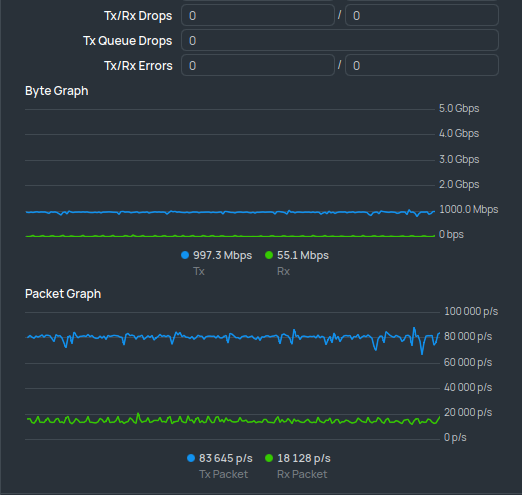
As shown in the screenshot, the transmission was rock solid, using the full 1Gbps
link, and without dropping any packet! Based on these results, I chose to keep
using the cake queue with the CPU frequency manually set to its maximum. I've
been using this configuration for a few weeks now, without any issue so far,
and it has even been used for transferring multiple terabytes of data without
breaking a sweat, thus making it a great success!
Thank you for reading this article, and see you in the next one!