Enable IPv6 fasttrack in RouterOS
Table of Contents
- What is fasttrack and why would I want to enable it?
- How to enable this feature for IPv6?
- Validating that fasttracking is working
A quick guide on how to enable this long awaited feature that just landed in RouterOS 7.18.
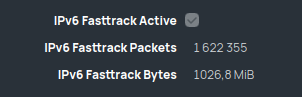
What is fasttrack and why would I want to enable it?
Fasttrack is a feature in RouterOS that allows packets to be sent directly to the interface instead of going through connection tracking, firewall rules, or queues, leading in an overall reduction in CPU usage. This reduction allows CPU-limited devices to route more packets and achieve better throughput.
As it changes the normal flow of packets in the router, you need to make sure, as a network administrator, that you don't need these fasttracked packets to go through the steps that will be skipped. For example, fasttracked packets will skip the next firewall rules and queues, so you need to make sure that you are not allowing too many packets to be fasttracked.
How to enable this feature for IPv6?
Before RouterOS 7.18, Fasttrack was only available for IPv4 and enabled by default, but this new update brought it to IPv6 without enabling it by default for existing setups.
To enable it, open WinBox and go to IPv6 > Firewall, then navigate to the Filter Rules tab.
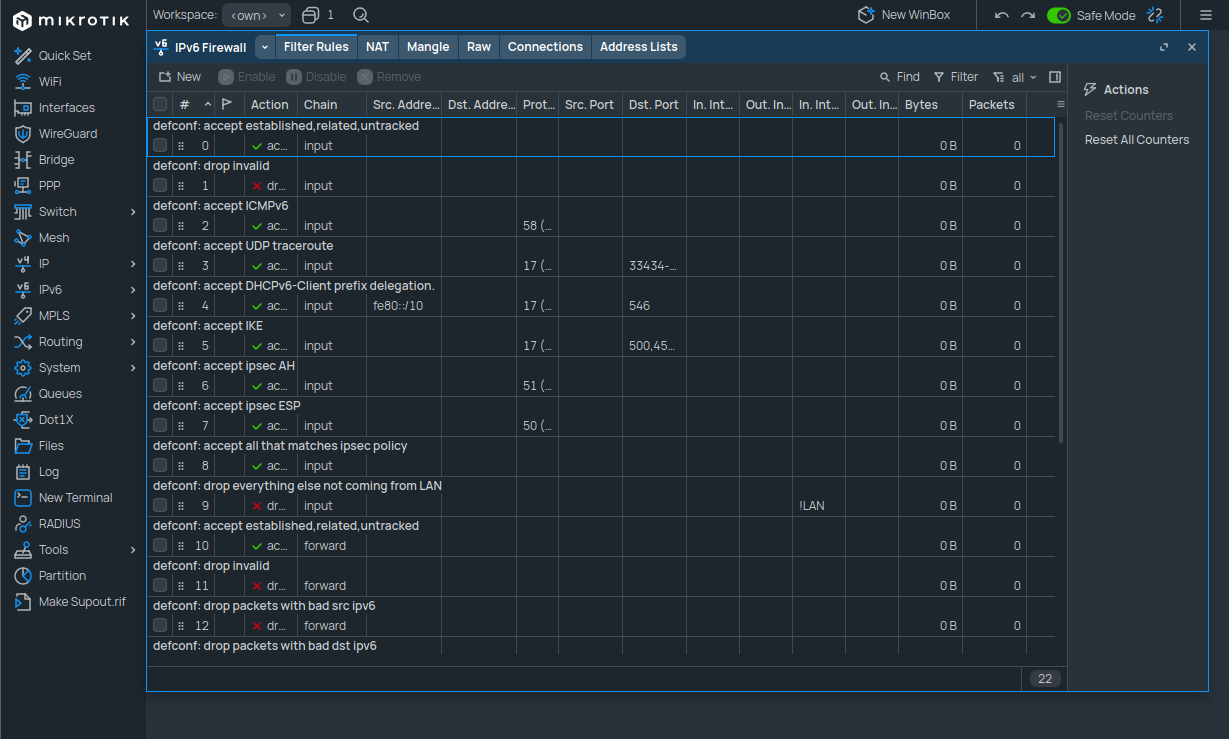
In there, you can create a new firewall rule for IPv6 packets that are part of already established or related connections to be marked as fasttracked:
- Enabled: ✅
- Chain:
Forward - Connection state:
Established,Related - Action:
Fasttrack connection
And click "apply" to create the rule.
Once the rule has been created, it should appear at the bottom of the rules list. A new special rule called "special dummy rule to show fasttrack6 counters" should also have been created dynamically and listed as the first rule in the table.
Now you can drag and drop your newly created rule to be the first one of the "forward" rules. This will ensure that the fasttrack rule is the first one to be computed against forwarded IPv6 packets, to avoid unnecessary CPU usage.
Of course, it is up to you to customize both the content of the rule and the order of its appearance in the table in order to fit your specific use case.
If, for example, you need packets coming from a specific host to go through a queue instead of being fasttracked, you could create another rule accepting the packets that match the above-mentioned pattern and place it above the fasttrack one.
In our case, it should look something like this:
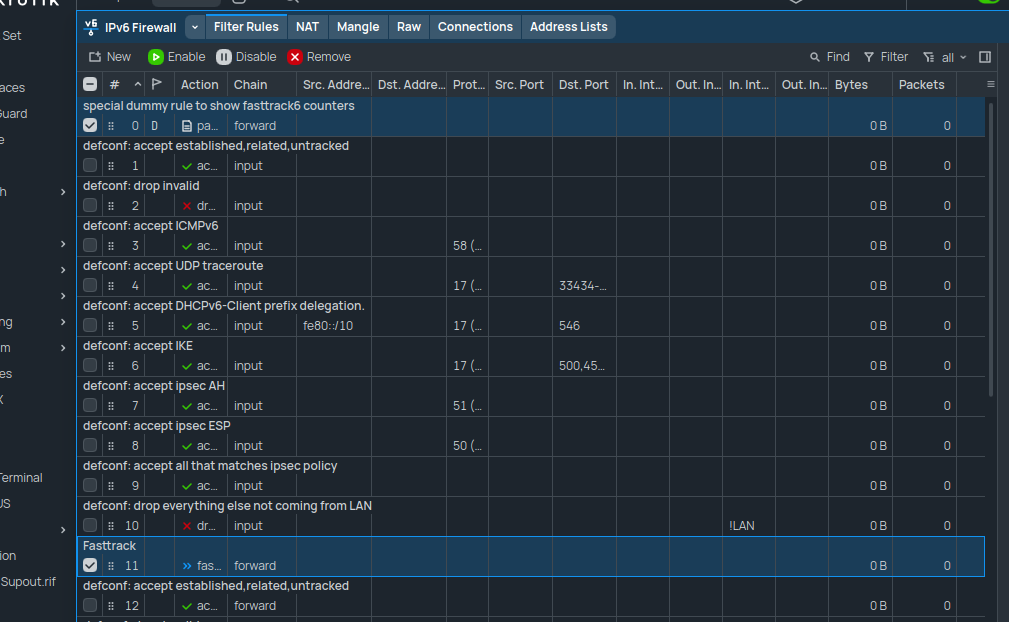
And that's it, fasttracking should now be enabled for IPv6!
Validating that fasttracking is working
Once the fasttrack rule has been added to our firewall, the IPv6 > Settings panel should
show that it is indeed enabled, such as in this screenshot:
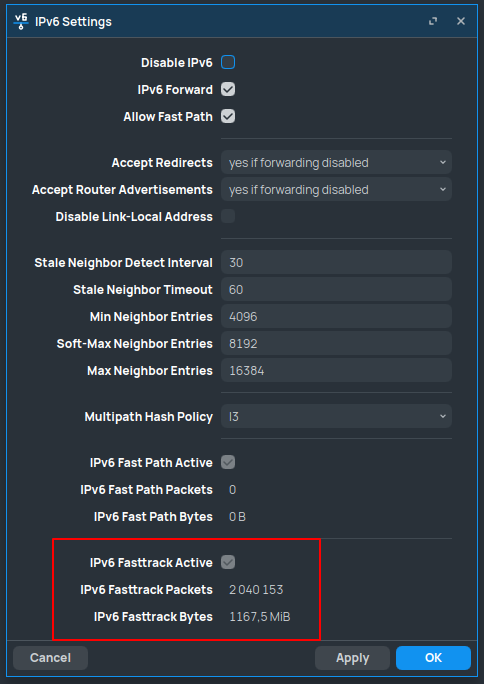
We can even see that packets are already being fasttracked! Congratulations! 🎉